 Suraj Tripathi
2018-12-29
Salesforce Web Service Testing Tool
Web-Services-LogoWEB SERVICES
Web service or API is a collection of procedures or software components that help an application to interact or perform some process/transaction by forming a connection between other application or server. There are basically two types of web service – REST and SOAP to drive the communication of data and information over internet protocol. Two specifications for Web Services are illustrated in this section: SOAP, REST
SOAP
SOAP was originally part of the specification that included the Web Services Description Language (WSDL) and Universal Description, Discovery, and Integration (UDDI).It is an XML-based protocol for accessing web services.
SOAP defines a standard communication protocol (set of rules) specification for XML-based message exchange. SOAP uses different transport protocols, such as HTTP and SMTP. The standard protocol HTTP makes it easier for SOAP model to tunnel across firewalls and proxies without any modifications to the SOAP protocol. SOAP can sometimes be slower than middleware technologies like CORBA or ICE due to its verbose XML format.
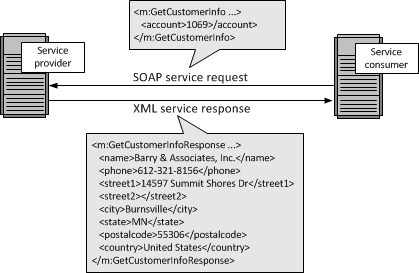
SOAP messages are hard-coded or generated without the use of a repository. The interaction is illustrated in the figure below.
Representation State Transfer (REST)
Representation State Transfer (REST) appeals to developers because it has a simpler style that makes it easier to use than SOAP. It also less verbose so that less volume is sent when communicating. REST web service permits different data format such as Plain Text, HTML, XML, and JSON.
REST describes a set of architectural principles by which data can be transmitted over a standardized interface (such as HTTP). REST does not contain an additional messaging layer and focuses on design rules for creating stateless services. A client can access the resource using the unique URI and a representation of the resource is returned. With each new resource representation, the client is said to transfer state. While accessing RESTful resources with HTTP protocol, the URL of the resource serves as the resource identifier and GET, PUT, DELETE, POST and HEAD are the standard HTTP operations to be performed on that resource.
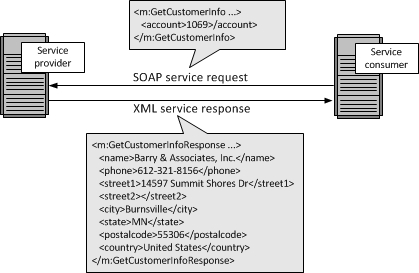
The interaction is illustrated in the figure below.
 Web Services Testing Tool
Salesforce supports the following type of testing tools:
Web Services Testing Tool
Salesforce supports the following type of testing tools:
- Workbench
- POSTMAN
- APIGEE
In this blog, I will let you know about how we can use POSTMAN testing tool. Before getting started with the postman, we need to keep following in mind:
- We should have a Class that will process the request and generates the response as per it.
- We need to have Connected App which will provide you the Consumer key and Consumer secret that will be used later for authentication.
- Lastly, the valid username and password with the security token.
startLet’s begin
First, we will see what shall be the definition of processing Class
Webservice Class:
@RestResource(urlMapping='/WebServiceTestingTool/*')
global class webServicesClass {
    @httpGet
    global static void CreateRecords_CA() {
        RestRequest req = RestContext.request;
        String soqlQuery = String.format('SELECT {0} FROM Account LIMIT 10', new List{'Name'});
        List acc = Database.query(soqlQuery);
        System.debug('Acc-->'+acc);
        String s = JSON.serializePretty(acc);
        System.debug('s--> '+s);
        RestContext.response.responseBody = Blob.valueOf(s);
    }

    @httpPost
    global static void CreateRecords_CAp(String nm) {
        Account acc = new Account();
        acc.Name = nm;
        insert acc;
        String s = 'Account Add';
        RestContext.response.responseBody = Blob.valueOf(s);
    }
}
@RestResource(urlMapping='/WebServiceTestingTool/*'): To declare a class as a custom endpoint, you only need to annotate a global class with “@RestResource” and define the name of the endpoint.
@RestResource(urlMapping='/WebServiceTestingTool/*')
global with sharing class {
This will define “WebServiceTestingTool” as an accessible endpoint and the full URI would be constructed from your instance URL concatenated with “/services/apexrest/WebServiceTestingTool”. For example, something like “https://na8.salesforce.com/services/apexrest/WebServiceTestingTool”. @httpGet: This annotation is used before those methods which will be call when request is made by get method @httpPost: Similar to @httpGet, this annotation is used to access code when request made by post method Creating Connected App: Follow few step to create Connected App in your ORG:
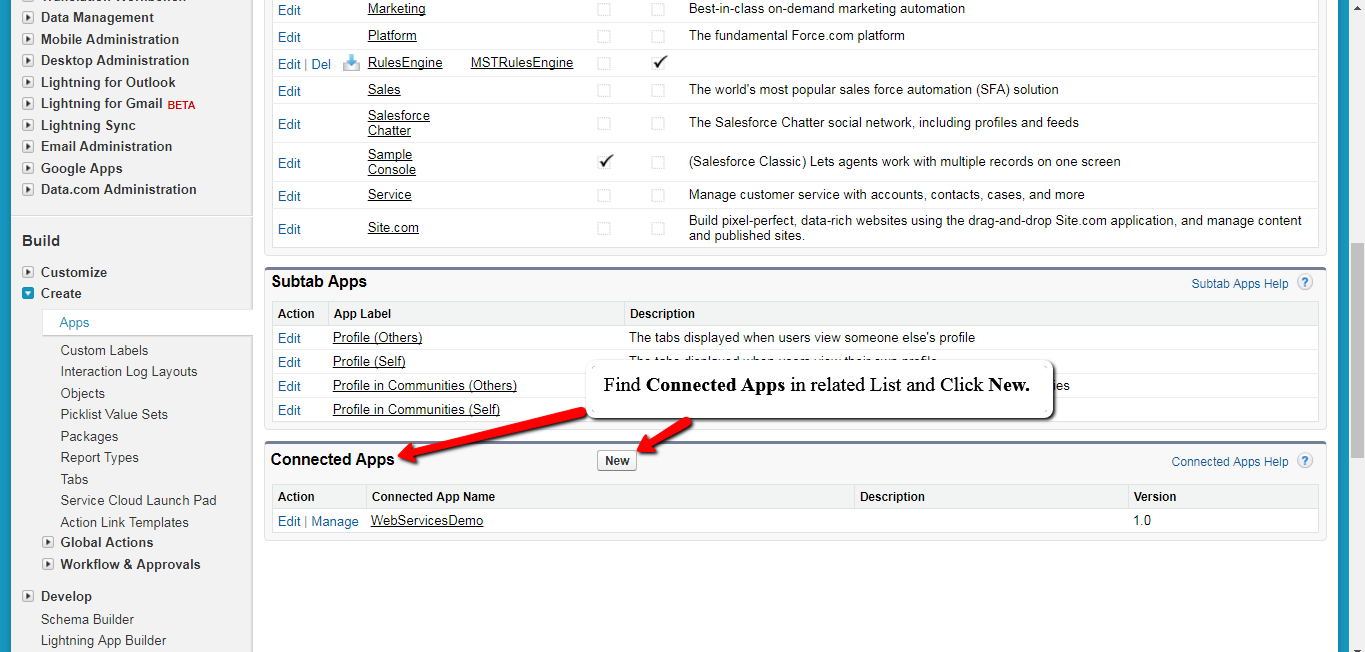
- In Quick Find Box, Enter App. Click on It**.**
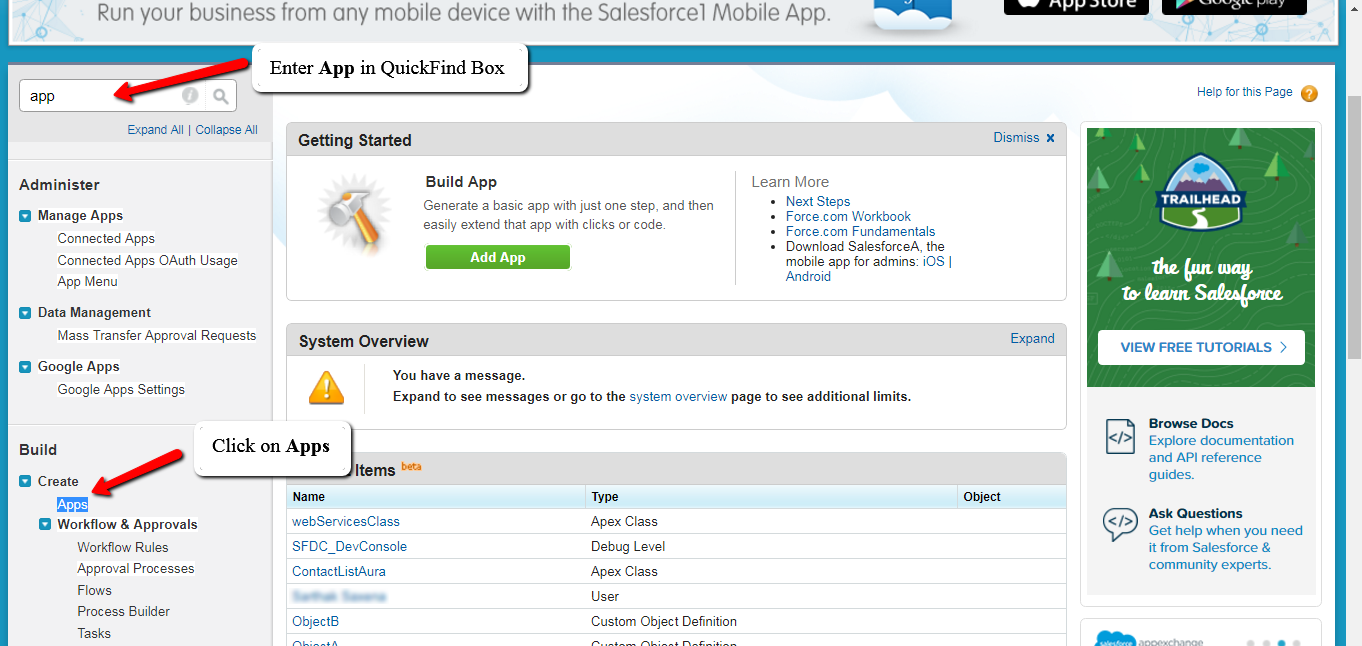
- From Related List create new Connected App.
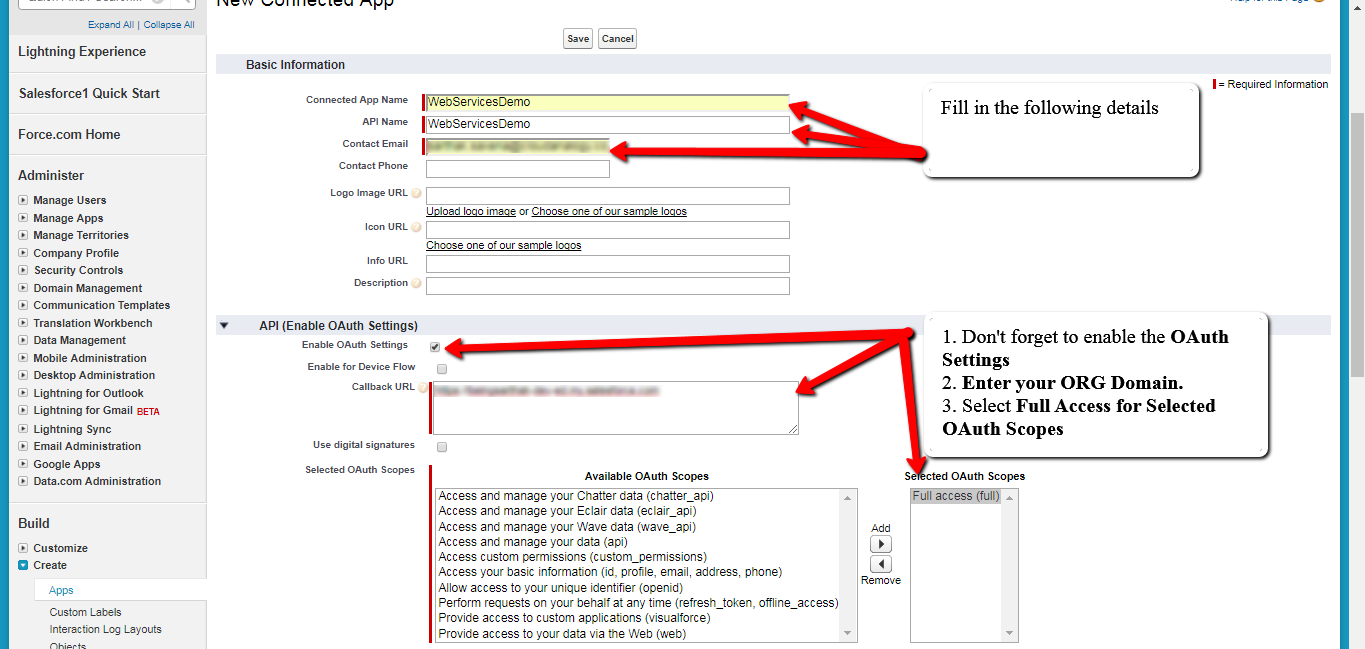
- Fill the mandatory Fields and Click Save.
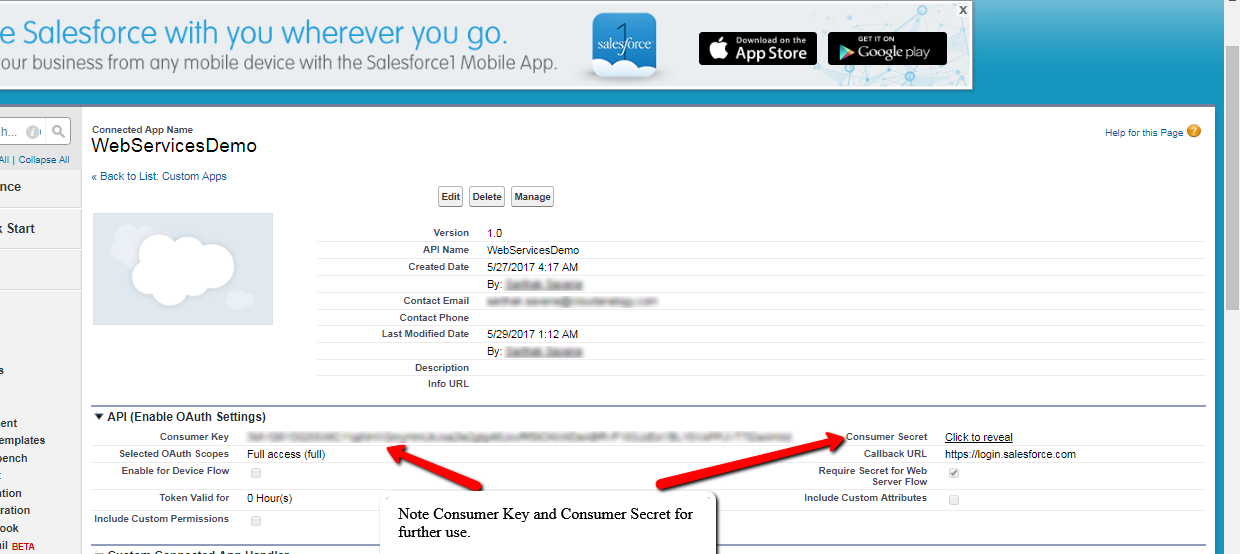
- Save few Keys for future use. These keys will help to recognize our ORG
testingLet’s Test Our Webservice
To test Web Service we will you use POSTMAN testing tool. Note: Add POSTMAN extension to your web browser. Follow few steps to get a hand on the testing tool:
- Launch POSTMAN tool.

- Enter the required details(like Client Secret Key, Client ID, username and password of the ORG)
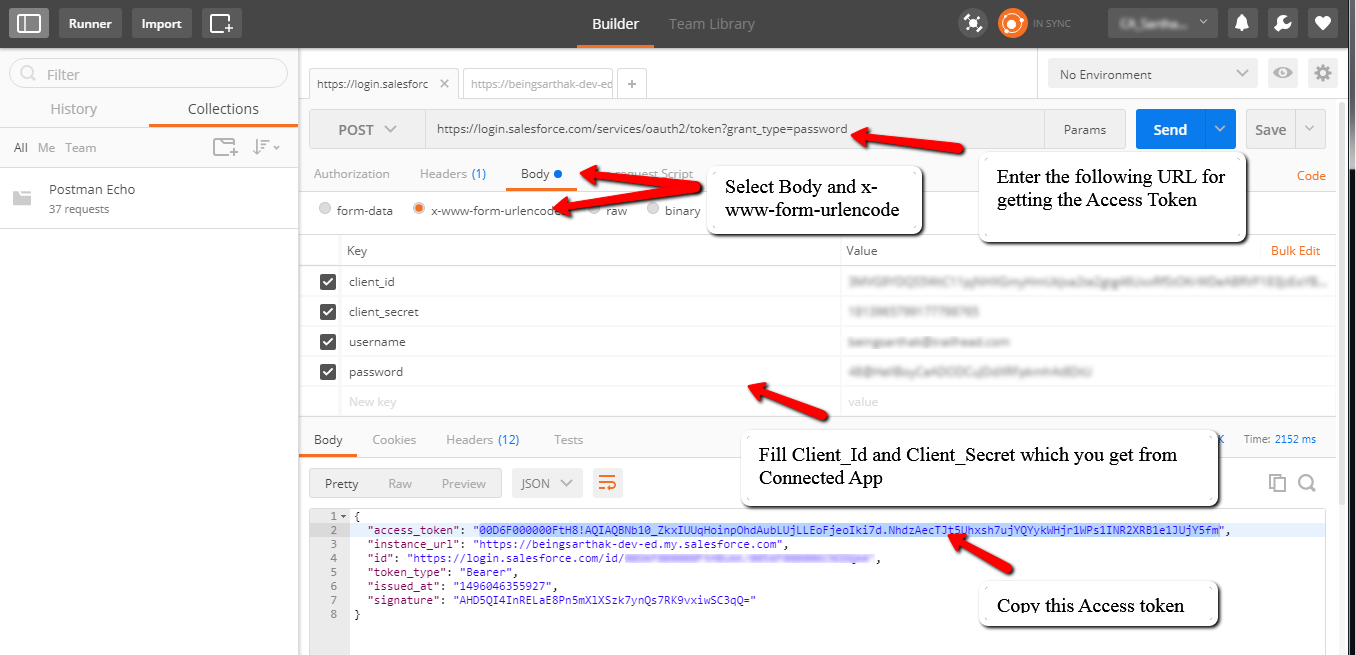 When POSTMAN will launch, Please select the method type as POST. Click on the BODY tab.
- Enter the following URL:
https://login.salesforce.com/services/oauth2/token?grant_type=password
-
Click on the x-www-form-URL encoded radio button.
-
Fill Key-Value pairs.
After filling in the key value click on SEND button. You will get the response in the following fashion:
{
    "access_token": "00D6F000000FtH8!AQIAQI_Tk7HNrkhPsGfkz70CuIKPRyRiPiiNQvPuOJffVtW1N3SENNN8LMaFRH9ORBHqo_Xf_pe_6BRf4ChsPltnnH5MJ7nG",
    "instance_url": "https://beingsarthak-dev-ed.my.salesforce.com",
    "id": "https://login.salesforce.com/id/00D6F000000FtH8UAK/0056F000006CNODQA4",
    "token_type": "Bearer",
    "issued_at": "1496477493242",
    "signature": "vgSlxPEzsxan1GXY8R/g0BY0AjSd3mU4gGhhK9ch7BY="
}
access tokenCopy Access Token
Now in a new tab of postman open the following URL:
https:///services/apexrest/
Select Header radio button and in Key enter Authorization and for value paste the access token with Bearer as prefix like Bearer
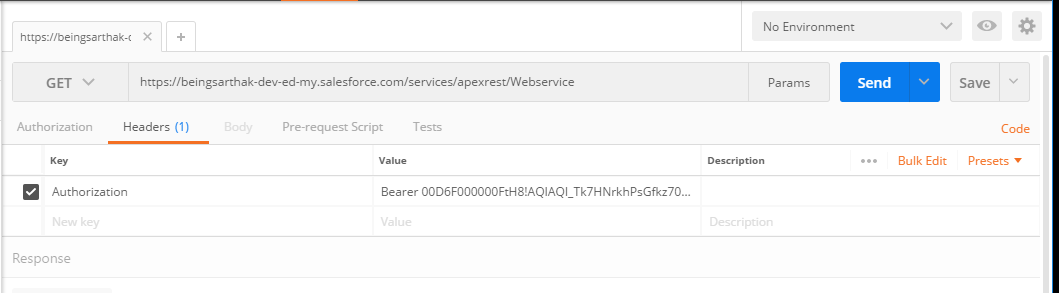 After filling it and clicking on the send button you will get the result.
The result will totally depend upon the functionality which you have written under the @POST or @GET method.
And this is how we will be testing our web services using POPOSTMAN.
After filling it and clicking on the send button you will get the result.
The result will totally depend upon the functionality which you have written under the @POST or @GET method.
And this is how we will be testing our web services using POPOSTMAN.