 Suraj Tripathi
2019-01-16
Creating Questions on Survey with Survey Force app

This is a mobile app that enables the end user to create questions for a survey that is , conducted. This was to obtain a feedback from the end client. Let us find first what all are the requirements of the client. First, we needed to create a survey and there are various types of these questions that constituted a survey. We offered the following solution for the client. In both Salesforce Community and Lightning. But let us find out more about “What is the Solution that we offered ?”. The Solution We have a make a survey option and there are 4 tabs inside this option. These are share, edit, header with thank you and CSS and Results.
- Edit Tab
This tab has two subsections
- Add Questions
- Add Sub header and Body
A. Add Questions
We have multiple options here - single select (horizontal), single select (vertical), Multi-select(vertical), free text and rating options. The user selects any of the above options say single select (vertical), from the pick list.
Single select (vertical)
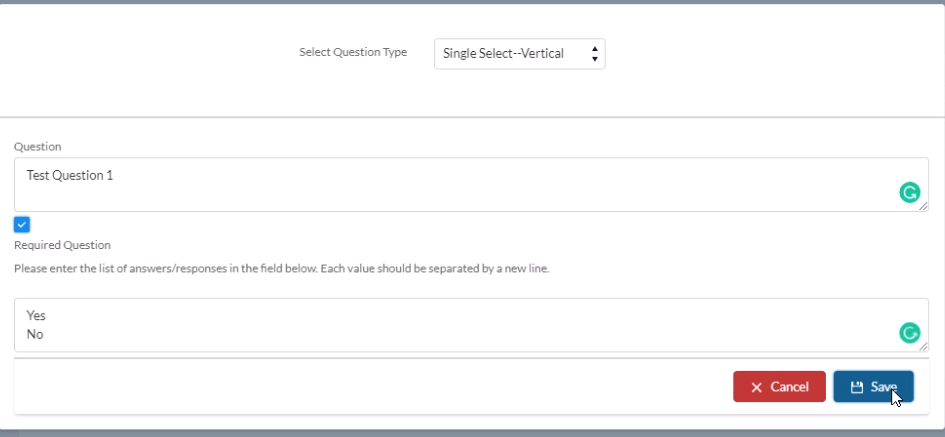
On selecting the same question type, you navigate to a different page where you type the question and you state whether the question is required or not - by clicking on the checkbox for this field. Now, the user provides the answer in the box provided and Save the record.
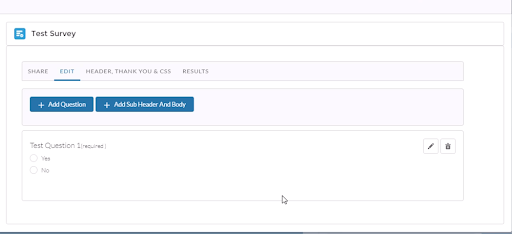
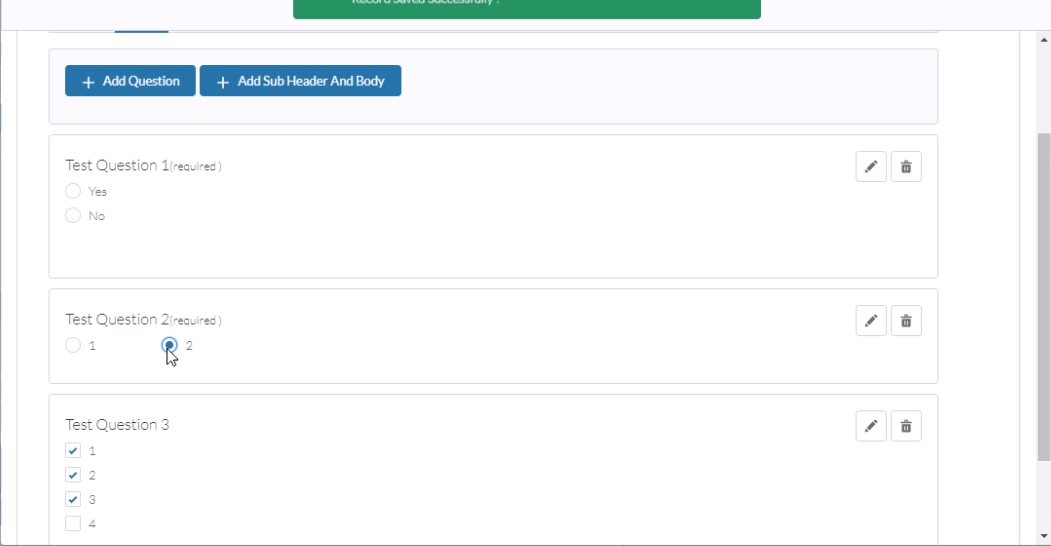
 The question is created as shown in the below screen.
 Note : There is message that is displayed on the screen that the record is saved successfully. There is a delete button for deleting the same question. Next, example is to create a single question(vertical).
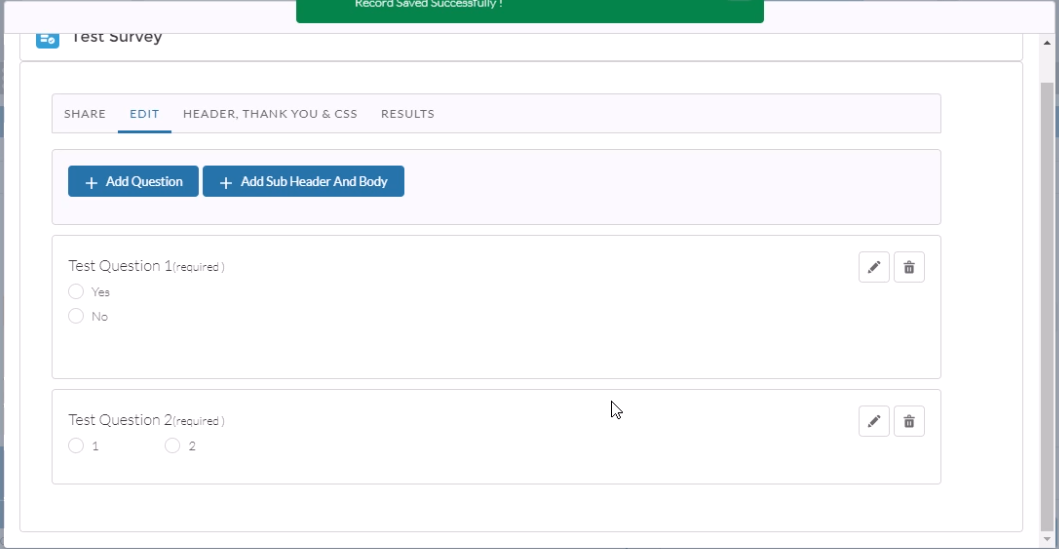 The only difference that lies between the horizontal and vertical is that the answer appears in a vertical manner.
Multi-select Questions
These type of questions are nothing but multiple choice questions. This is as shown in the below screen.
The only difference that lies between the horizontal and vertical is that the answer appears in a vertical manner.
Multi-select Questions
These type of questions are nothing but multiple choice questions. This is as shown in the below screen.
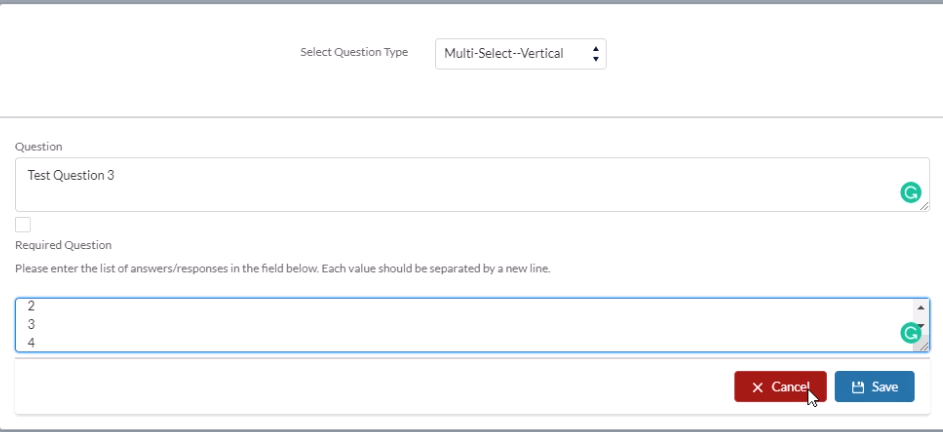 The user can make multiple choices here, while answering these questions. These multiple choices are shown in the screen below.
 Free Text
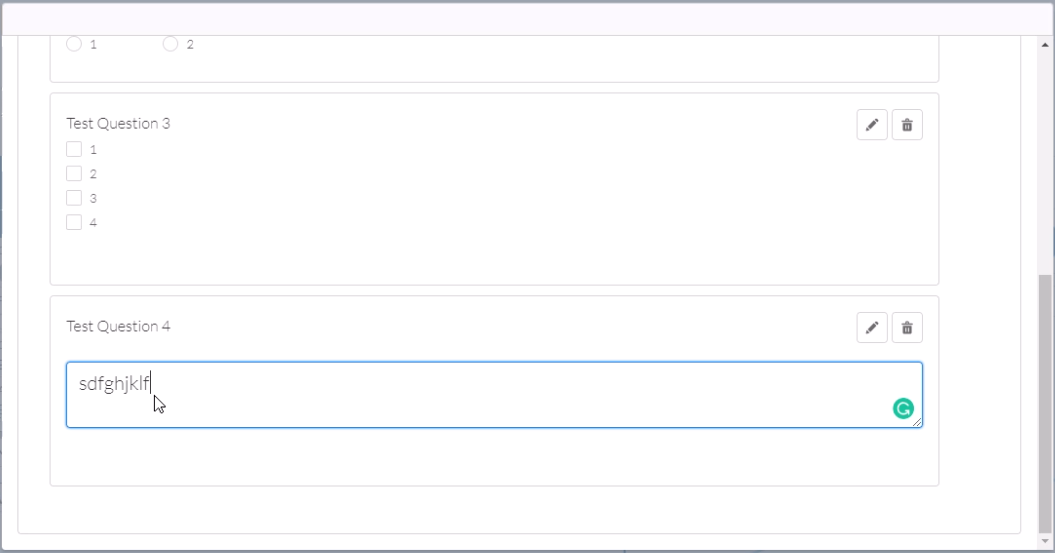
As shown in the below screenshot, in this type of question, the user can type an answer in paragraph or in the form of a free text.
Free Text
As shown in the below screenshot, in this type of question, the user can type an answer in paragraph or in the form of a free text.
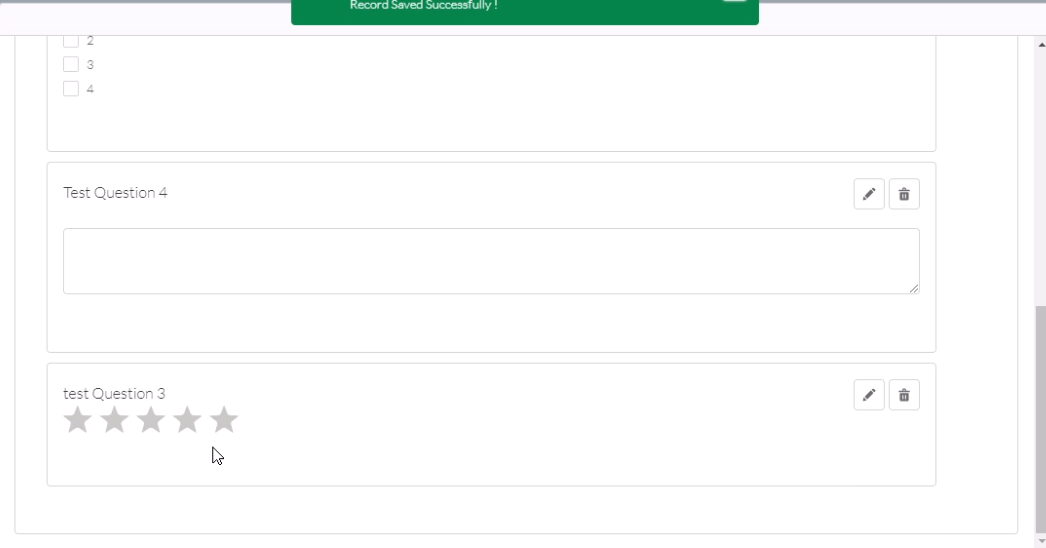
 Finally, the last type of our question is that of ratings option. Here the user will have ratings stars appear as answers.
 B. Add Subheader and Body
This is when the user would like to choose a single header say for two questions for segregating them into sections. This is explained in the below screen.
B. Add Subheader and Body
This is when the user would like to choose a single header say for two questions for segregating them into sections. This is explained in the below screen.
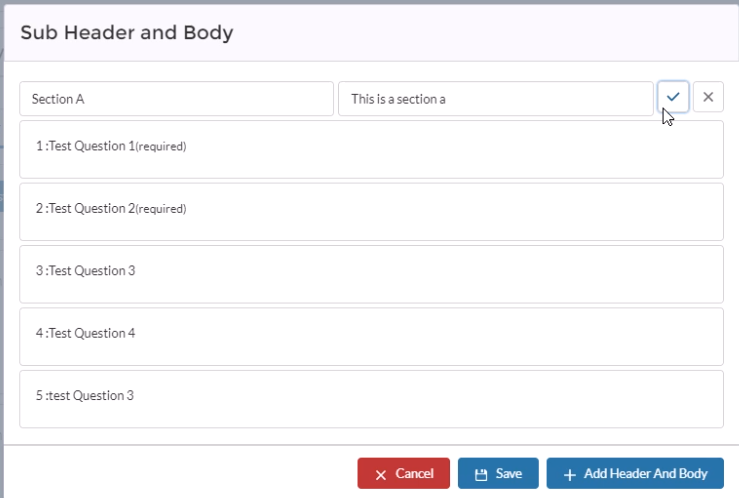 The user here need to click on the Add Header and Body as section name and the corresponding description say Section A and the description is typed,
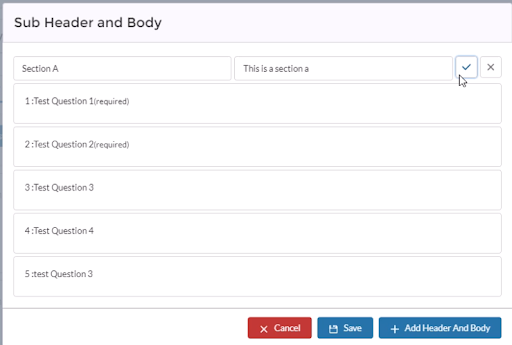 The user can make multiple subheaders as well and use the Drag and Drop feature to place it in the location of choice.
- Header, Thank You & CSS
This is the main header section, for customization of the survey form.
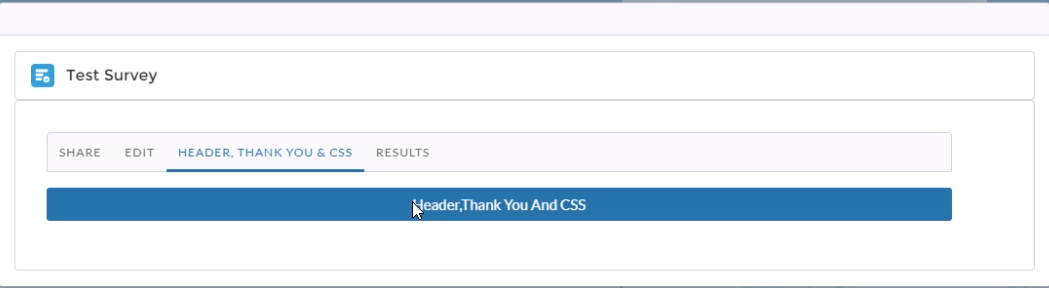 This is where the user gives the overall header and the Thank You text. This is what the user types in the below screen.
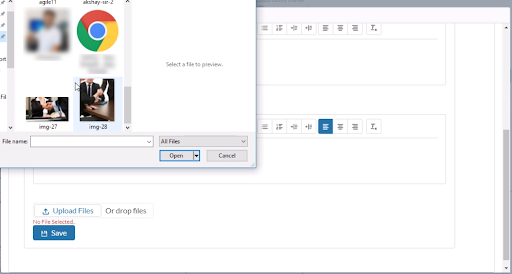
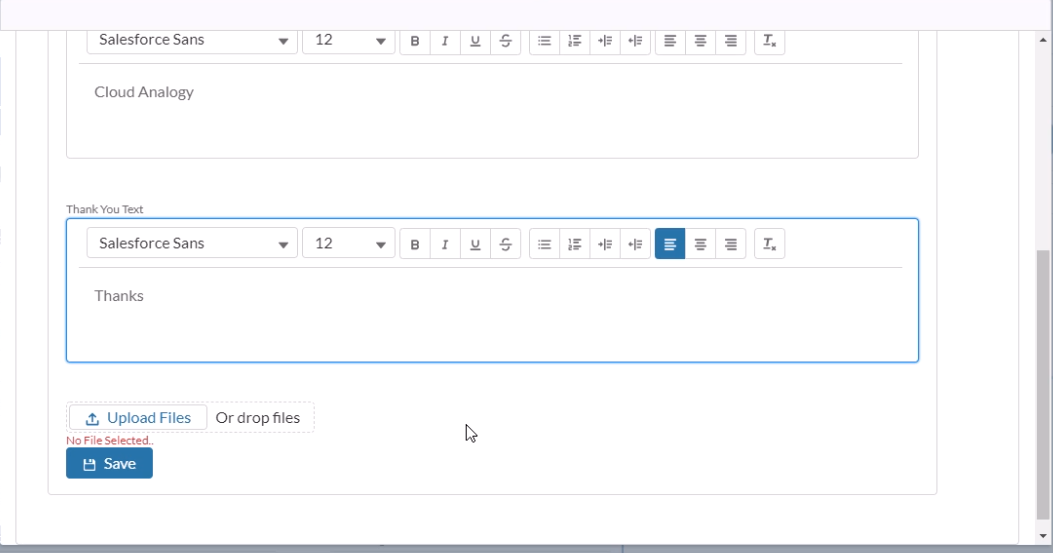 The user can also use the above screen for uploading a logo for their organization here - by clicking on Upload Files and selecting the corresponding picture, as shown in the below figure.
- Share Tab
The form logo that was uploaded in the previous step is what is displayed as in the Share tab as shown in the below screenshot.
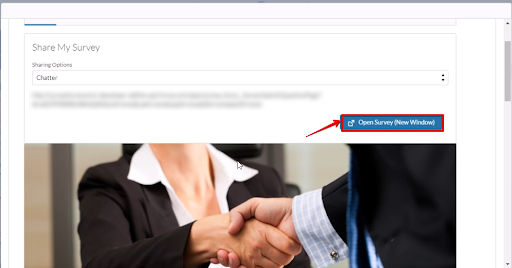 The form that we have already created can be opened in a new Windows tab on clicking on the Open Survey in the New Window. When the form opens in the new section then the user can submit the survey answer from that page.
- Results Tab
This is useful when the user needs to review the survey form that is created. Moreover. We can also create a new survey based on an account.
- Create a New Survey based on an Object in Salesforce
The user clicks on the Accounts object tab and then clicks on Make a New Survey and add questions to the survey as we have already explained before.
The account name is displayed in the lower part of the form as explained in the below screenshot.
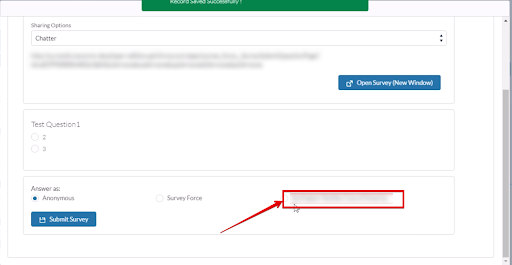
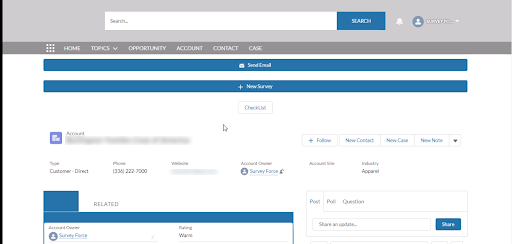 The user can see the form in the email by choosing the option Email Link with Account merge option. The email displays the link of the form.
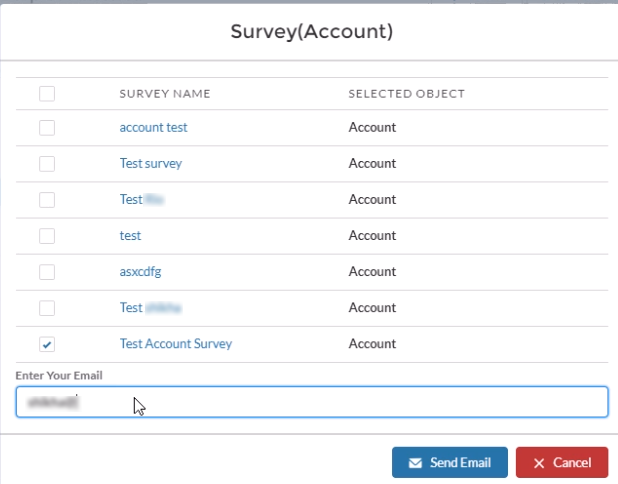
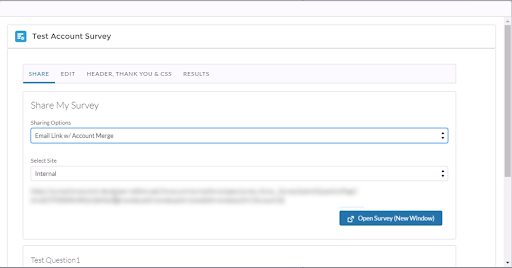 The user navigates to any of the account records and selects a survey account and enters the email address.
 The user can similarly create a form for an opportunity. The name of the opportunity is displayed in the lower left corner.
Summary
This Survey Force app is created to generate surveys with different types of questions. The user creates single, multiple-choice questions as well as star ratings type of questions. The app can group various questions with group headers as well as main header for the form itself.
It is also possible to create such surveys for various objects such as accounts, cases, opportunities and contacts, The user can receive the survey forms too - through their email.
The user can similarly create a form for an opportunity. The name of the opportunity is displayed in the lower left corner.
Summary
This Survey Force app is created to generate surveys with different types of questions. The user creates single, multiple-choice questions as well as star ratings type of questions. The app can group various questions with group headers as well as main header for the form itself.
It is also possible to create such surveys for various objects such as accounts, cases, opportunities and contacts, The user can receive the survey forms too - through their email.